Loading inputs
You can load input files into Recaf in two ways:
- The File menu
- Drag-drop files onto Recaf
File Menu
The file menu has a few different entries in it
Open workspace: Opens a dialog that prompts you to provide files or folders to open.
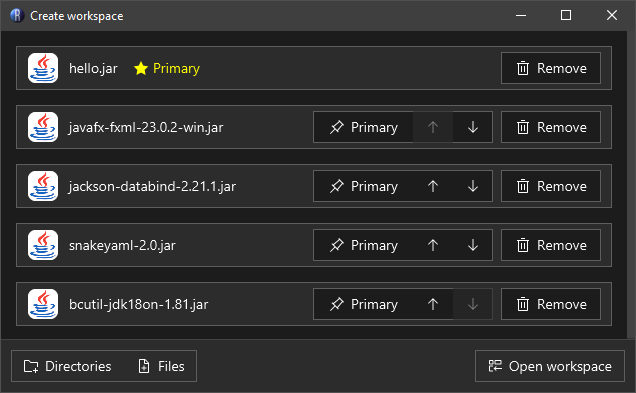
The 'Open workspace' dialog lets you choose any number of inputs. Only the primary file will be editable, the rest are treated as supporting libraries and are read-only. Remember to check which one you have selected as primary!
Add to workspace: If you already have a workspace open, you can add supporting libraries with a similar dialog to "Open workspace".
Recent: This is a dropdown menu containing recent files you have opened with Recaf. Click on an entry to open it again.
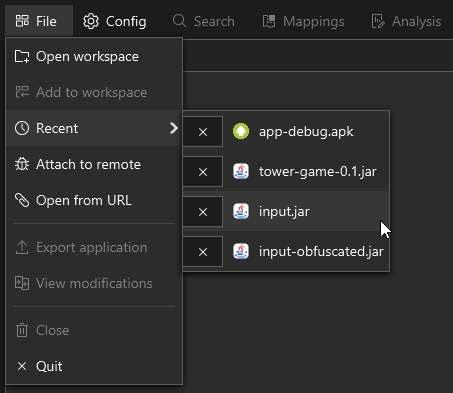
The 'Recent' menu in the 'File' menu tracks the last few files previously opened in Recaf. You can click on them to open them again.
Attach to remote: Opens a dialog that lists currently running Java processes on your computer. You can select one, then press "Connect" to attach to the process and show classes grouped by their classloader.
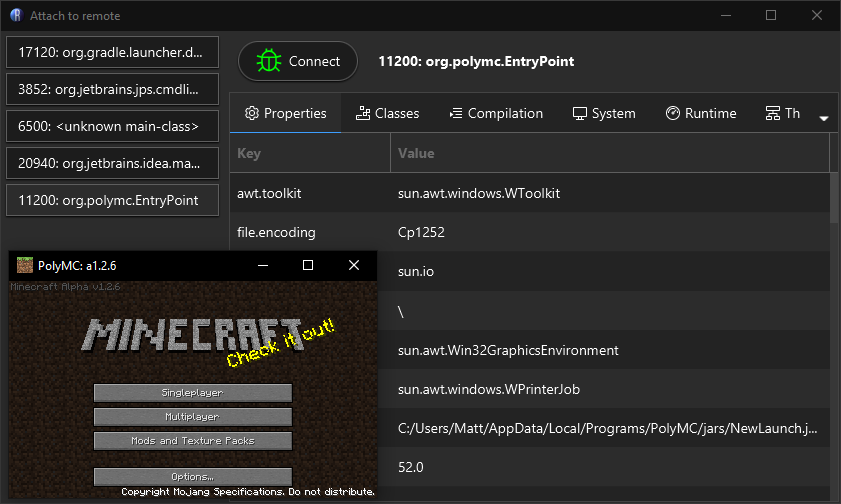
The 'Attach to remote' dialog lets you read and modify the classes from any compatible Java process on your local machine. Click a process for more info, and then 'Connect' to load it.
Open from URL: Opens a dialog that lets you put in a URL to a remote file. It will be streamed and loaded in-memory.
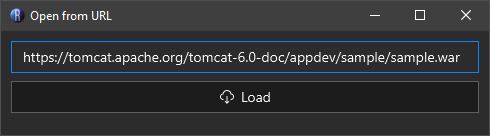
The 'Open from URL' dialog lets you read content from any valid URL you can connect to.
Drag-Drop
When you open Recaf you'll see the home panel with relevant links and recent files. This entire space can receive dropped files. If you already have a workspace open, the workspace panel (tree of all files in the input) behaves in the same way. Drop files here to open them.
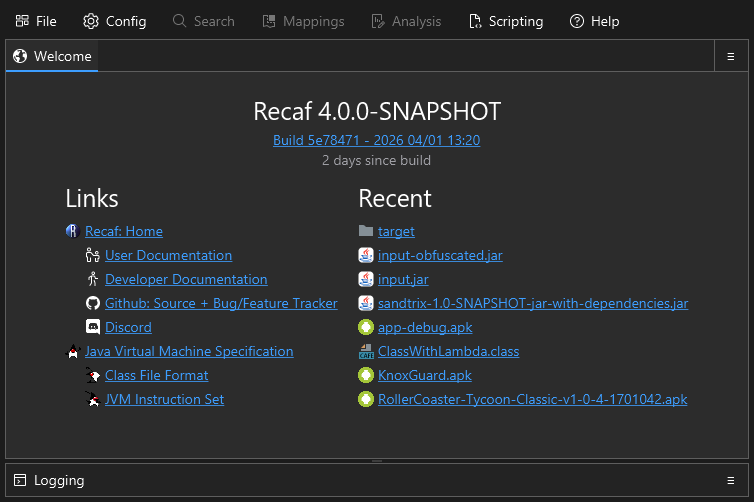
The home panel provides you with easy access to relevant documentation links, single click links to load recent input files, and current version information.